
Custom Skins for League of Legends
Install, manage, and create custom skins, maps, and HUDs for League of Legends with the Fantome mod format. Client-side only, free, and open-source.
on GitHub
What Is CSLOL Manager?
The open-source mod manager that League of Legends players rely on for custom skins, maps, and HUD modifications.
A Mod Manager Built by the Community
CSLOL Manager is a free, open-source tool that lets League of Legends players install and manage custom skins on their local client. It uses the Fantome mod format (.fantome files), which has become the standard across the League modding community. You import mod files, toggle them on or off in a profile, then launch League through the manager. The tool intercepts asset requests at runtime so the game loads your custom skins instead of the defaults.
All changes are strictly client-side. Other players in your match still see standard Riot skins on their end. Your account data stays untouched. The CSLOL Manager app itself runs outside the League installation folder, so it does not modify any game files directly.
Who Made It?
The project comes from LeagueToolkit, an open-source community on GitHub. Key contributors include Moonshadow and Morilli. The source code is available under the GPL-3.0 license, and the repository has seen over 40 releases since its first build. Development has slowed in recent months as the team shifts focus to LTK Manager (the planned successor), but CSLOL Manager still works with current League patches.
Platform Support
CSLOL Manager runs on Windows 10 and 11 (with admin rights needed on first launch), Intel-based macOS, and Apple Silicon Macs with a native ARM64 build. Linux is not officially supported. The Windows download is a ~15-20 MB ZIP archive that you extract and run directly — no installer needed. The application is built with C++ and Qt, giving it a lightweight footprint that will not slow down your system while League runs in the background.
Ready to start modding? Download CSLOL Manager and check the getting started guide below.
Key Features
CSLOL Manager gives you full control over League of Legends cosmetic mods without touching game files directly. Here is what it does.
Fantome Mod Format
CSLOL Manager uses the Fantome (.fantome) format, which has become the standard for League of Legends skin mods. You can also import plain .zip archives. The tool handles all the WAD packing and file mapping behind the scenes, so you drop in a mod file and it just works. No manual file replacement needed.
Profile Management
Organize your mods into separate profiles. Keep a “Competitive” setup with minimal skins, a themed collection for normals, and swap between them before launching. Each profile remembers which mods are on or off.
Mod Creation Tools
Build your own skin mods from RAW overlay folders. CSLOL Manager packs and unpacks WAD files, so modders can edit textures, particles, and models directly and then compile them into a distributable .fantome package.
Runtime Asset Injection
Rather than replacing game files on disk, CSLOL Manager intercepts asset requests at runtime. On Windows, it loads a DLL that hooks into file read calls. On macOS, it pattern-scans the executable and injects ARM64 or AMD64 shellcode. The result: your League installation stays untouched, and mods only appear while the manager is running.
Auto League Detection
On first launch, CSLOL Manager scans your system for the League of Legends Game folder automatically. If it cannot find it (unusual install path, PBE, etc.), you can set the path manually in settings.
Search and Filtering
When your mod library grows past a few dozen skins, the built-in search bar and filter options keep things manageable. Find mods by name, author, or version without scrolling through a long list.
Windows and macOS Support
Runs on Windows 10/11 with full support, including Intel and Apple Silicon Macs with native ARM64 builds. Unlike alternatives like Runeforge (browser-only), CSLOL Manager is a desktop app with native performance on both platforms.
Client-Side Only Changes
Every mod CSLOL Manager applies is purely cosmetic and local to your machine. Other players in your game still see the default Riot-owned skins. Nothing is sent to the server, and nothing changes the gameplay.
System Tray Integration
Minimize CSLOL Manager to the system tray so it stays out of your way while League is running. The tray icon lets you quickly check status or restore the window without alt-tabbing through open apps.
Automatic Update Checks
On startup, the manager checks GitHub for new releases and notifies you if an update is available. With 40+ releases so far, staying current means compatibility with the latest League patches from Riot.
Built by the LeagueToolkit community and released under the GPL-3.0 license.
System Requirements
Check whether your system can run CSLOL Manager before downloading. The tool runs on both Windows and macOS with modest hardware needs.
| Component | Minimum | Recommended |
|---|---|---|
| Operating System | Windows 10 (64-bit) or macOS 10.15 Catalina | Windows 11 (64-bit) or macOS 14 Sonoma |
| Processor | Dual-core CPU, 2.0 GHz or faster | Quad-core CPU, 3.0 GHz (Intel i5 / Apple M1 or newer) |
| RAM | 4 GB | 8 GB or more |
| Disk Space | 100 MB (app only) | 500 MB+ (app plus mod library) |
| League of Legends | Riot Games client installed with League of Legends | Latest League patch, standard Riot install path |
| Display | 1280 x 720 | 1920 x 1080 |
| Permissions | Administrator access on first run (Windows) | Admin rights for DLL injection; no admin needed on macOS |
| Internet | Required for auto-update checks | Broadband for downloading mods from Runeforge or GitHub |
Ready to install? Download CSLOL Manager and start customizing your League experience.
Download CSLOL Manager
Grab the latest build for your platform. The Windows .exe is a standalone executable – no installer needed.
macOS (Apple Silicon)
Download for macOS ARM64Build 2026-02-28macOS (Intel)
Download for macOS IntelBuild 2026-02-28CSLOL Manager is a portable application. On Windows, download the .exe file and run it directly from any folder outside your League of Legends directory. The first launch may require administrator privileges so the tool can set up its mod injection hooks. After that, it runs without admin access.
On macOS, extract the tar.xz archive and move the application to your preferred location. Apple Silicon users should download the ARM64 build for better performance. Intel Mac users need the separate Intel build. Both versions work with the standard Riot Games client – Garena and other regional launchers are not supported.
All downloads come directly from the official LeagueToolkit GitHub repository. The source code is available under the GPL-3.0 license, so you can inspect and build it yourself if you prefer.
Screenshots
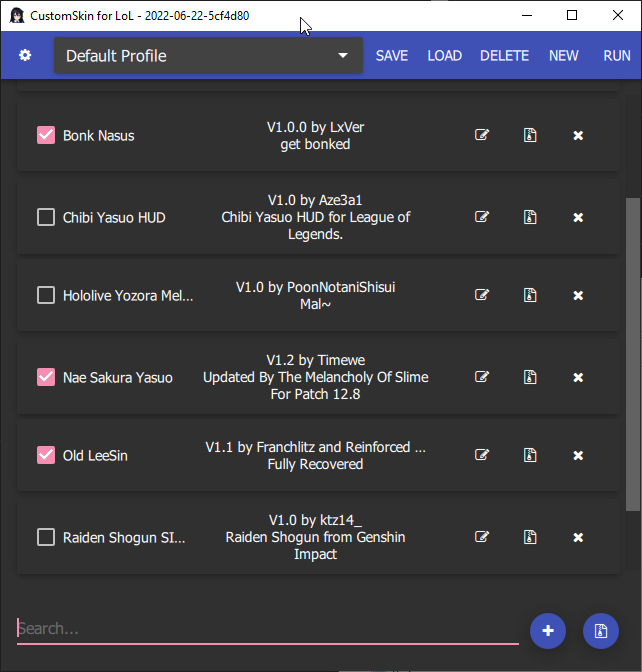
See CSLOL Manager in action – from browsing your mod library to applying custom skins in League of Legends.
Getting Started with CSLOL Manager
From download to your first custom skin in under ten minutes. This walkthrough covers the full setup process so you can start modding League of Legends right away.
Downloading CSLOL Manager
Grab the Latest Release
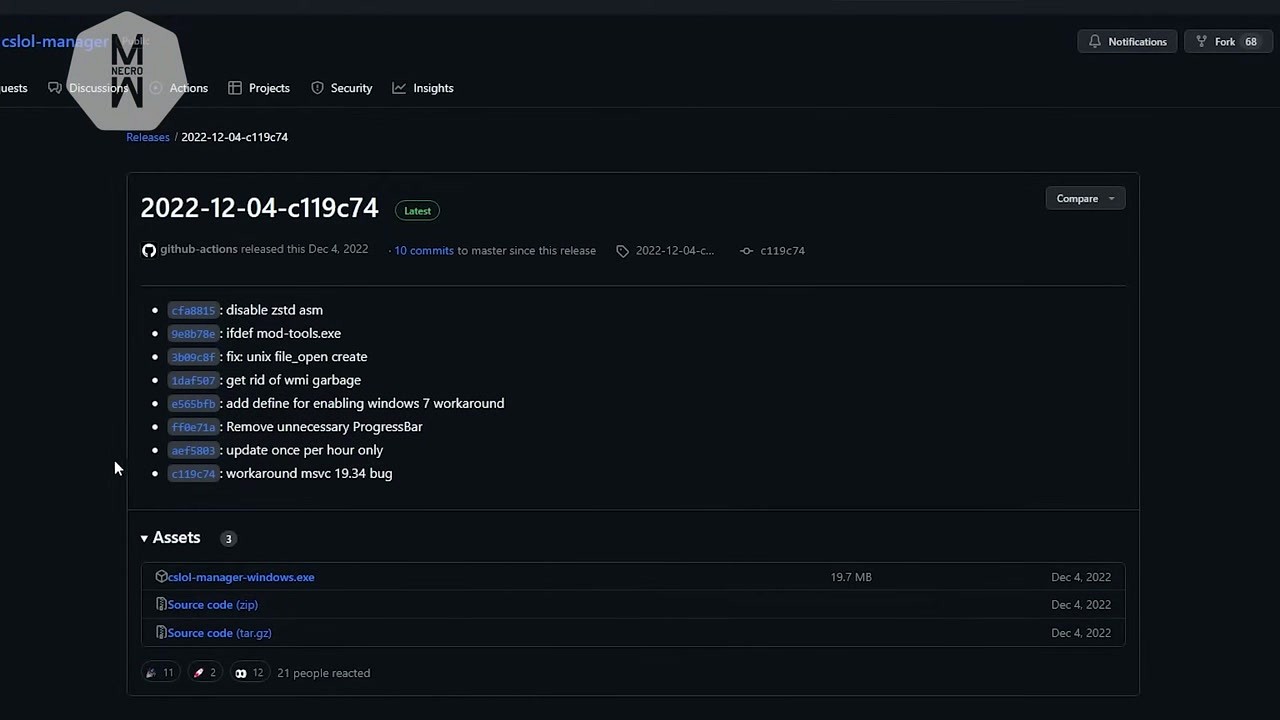
Head to our download section above and click the Windows download button. The file you want is cslol-manager-windows.exe – a self-extracting 7-Zip archive weighing around 15-20 MB. The download finishes in seconds on most connections.
On macOS, pick the right build for your hardware. Intel Macs need cslol-manager-macos-intel.tar.xz, while Apple Silicon machines (M1, M2, M3, M4) should use cslol-manager-macos.tar.xz for native ARM64 performance. Running the Intel build through Rosetta will trigger an error.
Choose Your Download Location
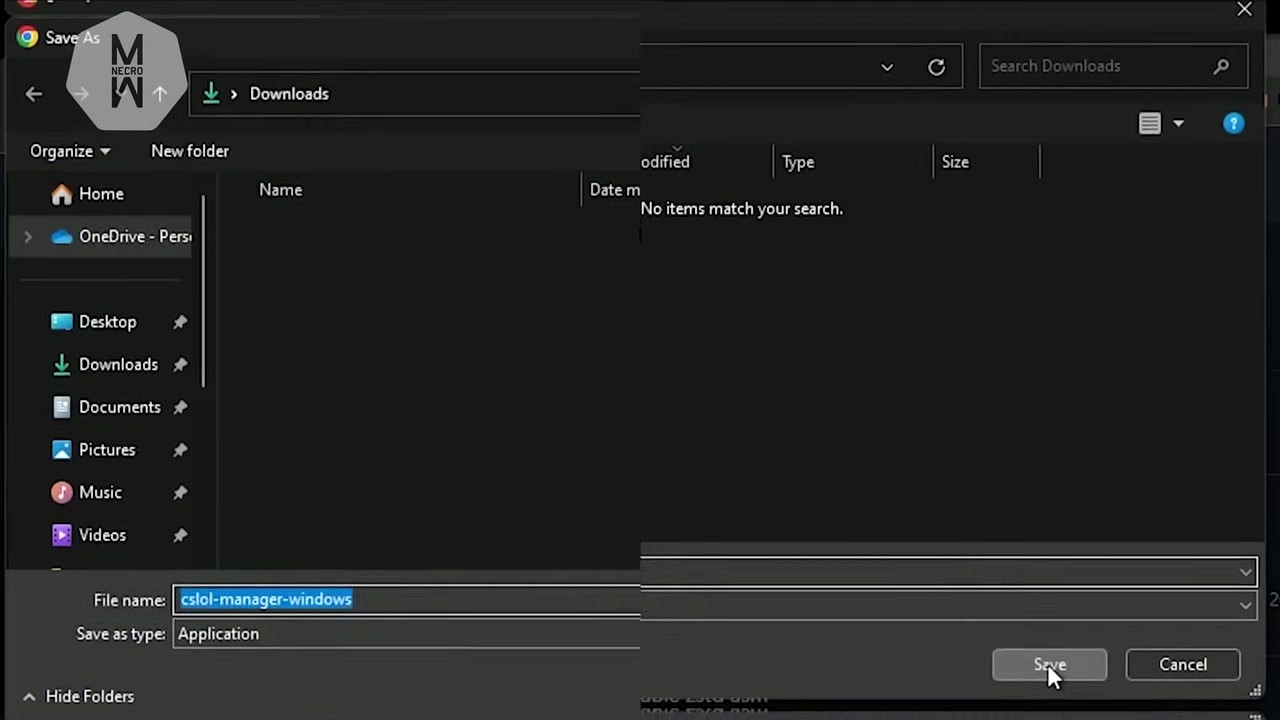
When the save dialog appears, pick a folder that is not inside your Riot Games directory or OneDrive. CSLOL Manager checks for cloud-synced folders on startup and refuses to run from them. A dedicated folder like C:GamesCSLoL Manager or your Desktop works well.
Installation Walkthrough
Extract the Archive
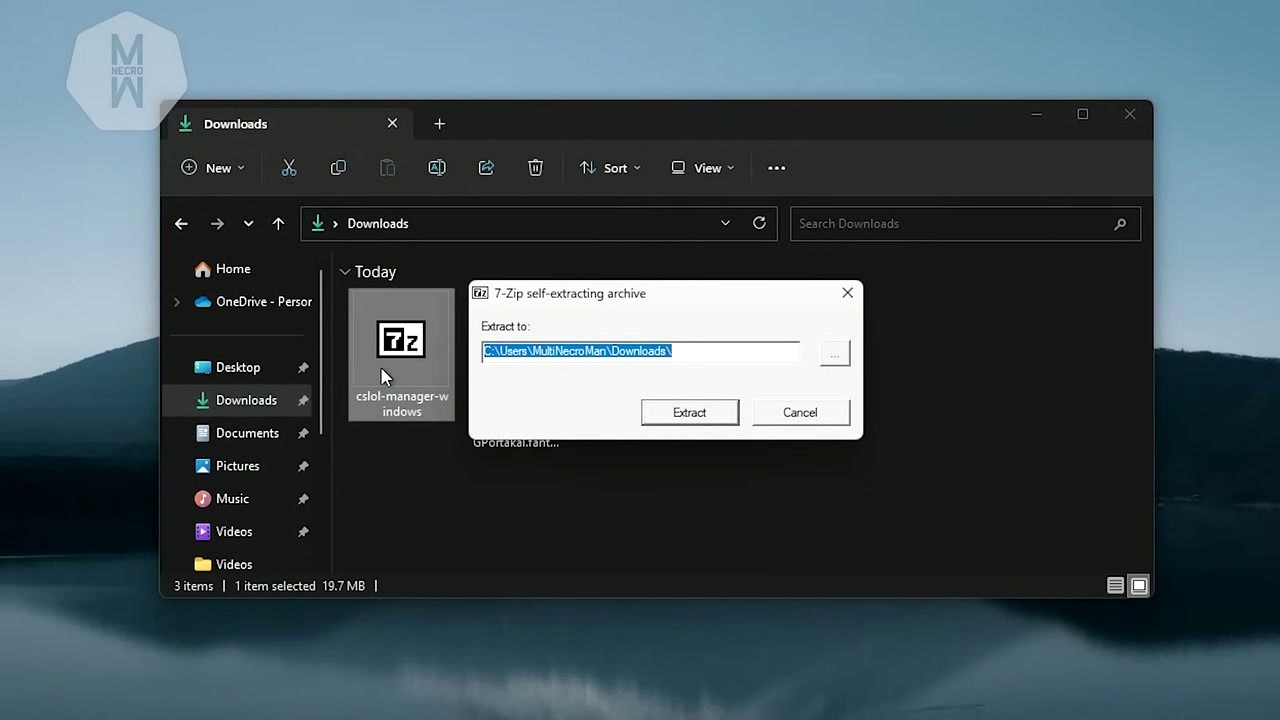
Double-click cslol-manager-windows.exe and the 7-Zip extraction dialog appears. Set the “Extract to” path to your chosen folder and click Extract. This creates a cslol-manager directory containing the main executable alongside the cslol-tools subfolder with mod-tools.exe, cslol-dll.dll, and hashes.game.txt.
On macOS, open Terminal and run:
Then open the resulting cslol-manager.app. macOS may quarantine the app on first launch, but CSLOL Manager handles this automatically – just approve the admin authentication prompt once.
Launch CSLOL Manager
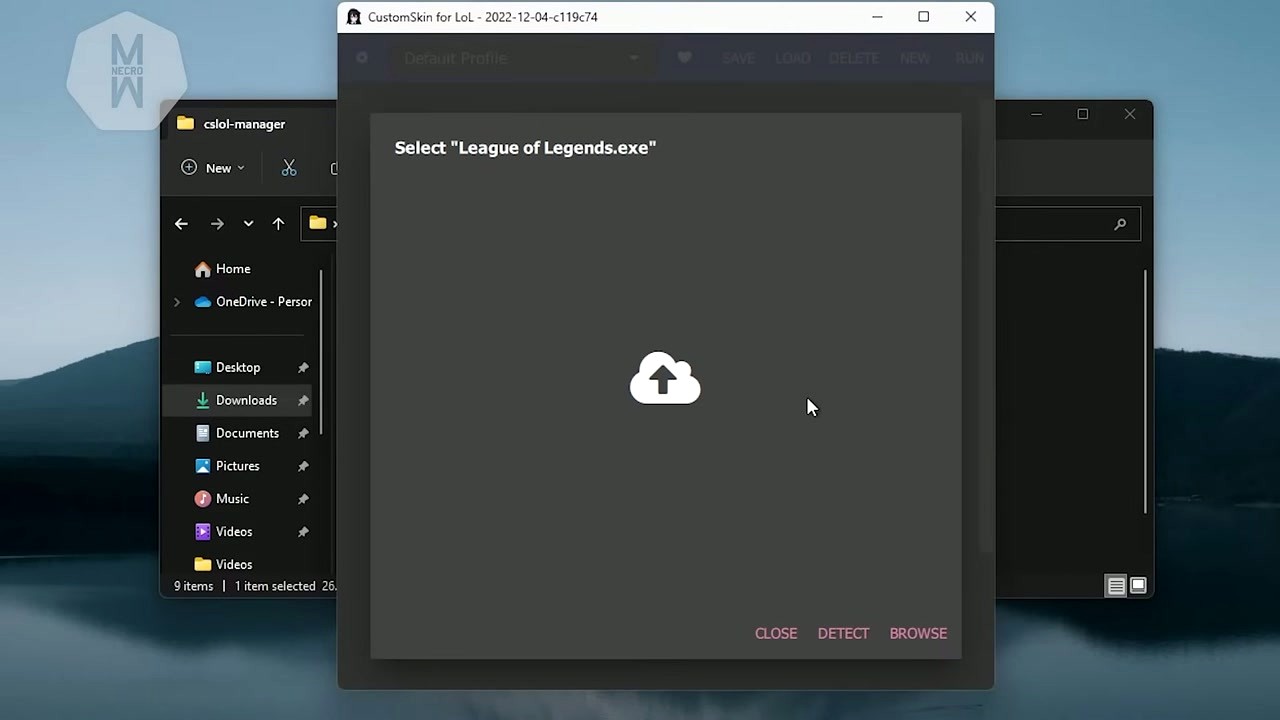
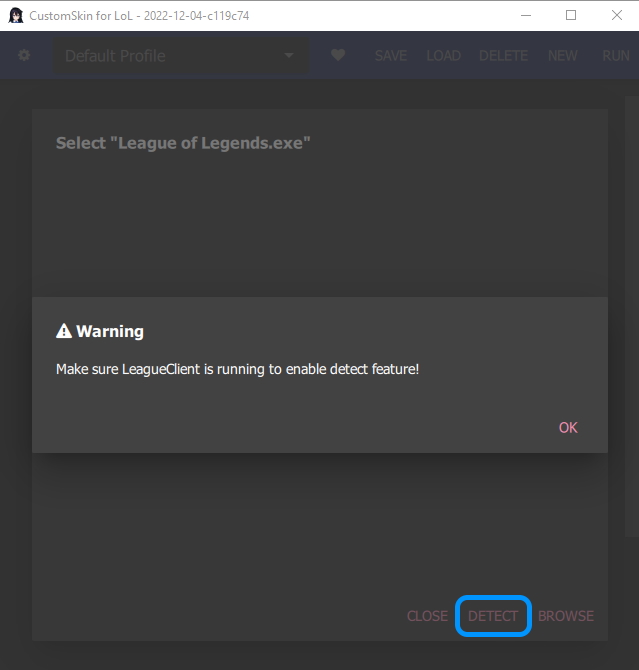
Open cslol-manager.exe from the extracted folder. On first launch, the window shows a prompt reading “Select League of Legends.exe” with three buttons at the bottom: CLOSE, DETECT, and BROWSE. If you get a Windows SmartScreen warning, click More info and then Run anyway – the app is open-source and safe.
Set the Game Path
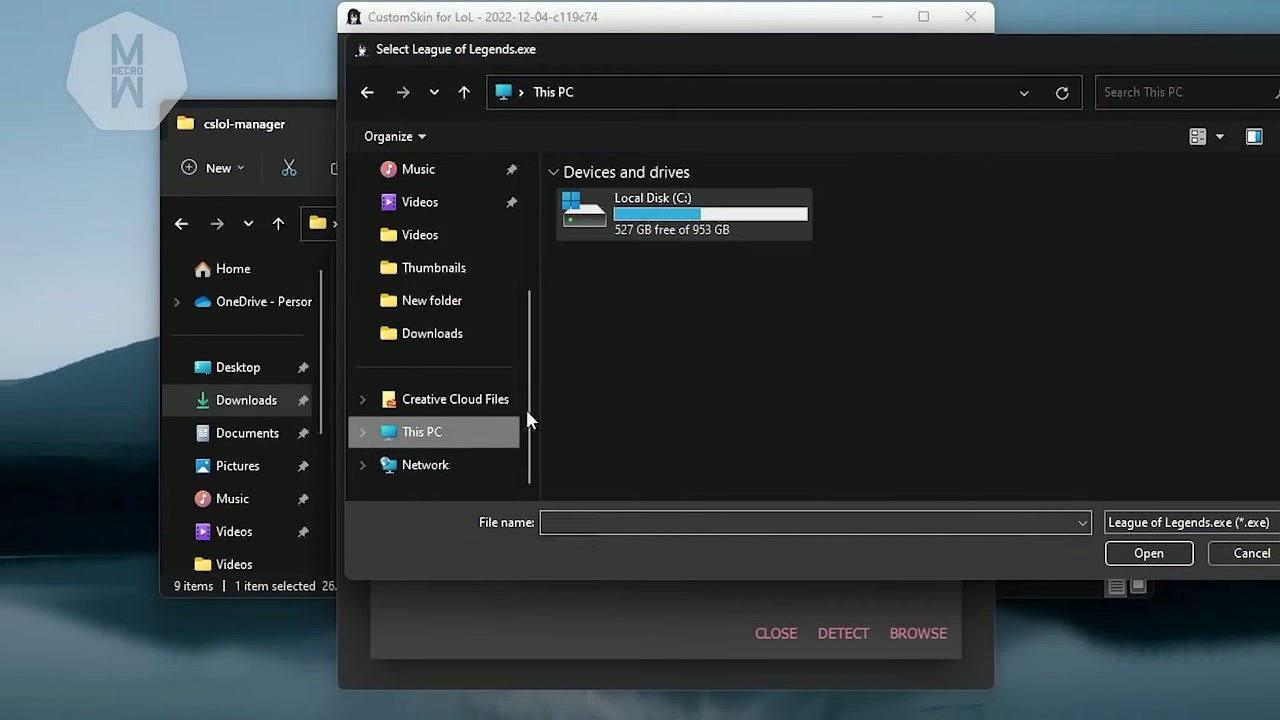
Click DETECT with the League Client running in the background, and CSLOL Manager finds your installation automatically. It searches for LeagueClient.exe or League of Legends.exe among running processes and validates the path.
If detection fails, click BROWSE and navigate to your League installation. The typical path on Windows is:
Look for League of Legends.exe inside that Game folder. On macOS, point to the LeagueofLegends.app bundle inside the Contents/LoL/Game directory.
Verify Your Setup
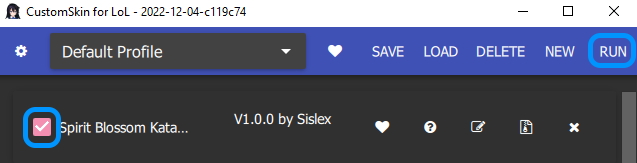
After setting the game path, the main CSLOL Manager interface loads. You should see the toolbar at the top with the gear icon, profile dropdown, and the SAVE / LOAD / DELETE / NEW / RUN buttons. The mod list area below will be empty – that is normal for a fresh install.
The application stores your settings in config.ini inside its directory. This file remembers your game path, theme preference, and other options between sessions. No Windows registry entries or system-wide changes are made.
Initial Setup & Configuration
Open Settings
Click the gear icon in the top-left corner of the toolbar. The Settings panel organizes options into three tabs:
Game tab – Your League path and a blacklist for specific mods. The “Detect Game Path” toggle tells CSLOL Manager whether to auto-scan for League every time it starts.
System tab – Enable verbose logging here if you run into trouble – it writes detailed output to log.txt. The “Check for updates” toggle checks GitHub releases on startup. You can also turn on the system tray icon so the app minimizes to your taskbar tray instead of closing.
Theme tab – Toggle between dark mode and light mode. The dark theme is on by default.
Recommended Settings for New Users
Leave Detect Game Path enabled so your League install gets found automatically each session. Turn on Check for updates to stay current with new releases – CSLOL Manager updates can fix compatibility issues when Riot patches the game client.
Enable System Tray if you want CSLOL Manager running quietly while you play. For troubleshooting, keep Verbose Logging off unless you hit problems – it generates large log files.
If you are on a non-English Windows locale and encounter issues, import the FIX-NON-ENGLISH.reg file included in the app directory.
Your First Custom Skin
Download a .fantome Mod
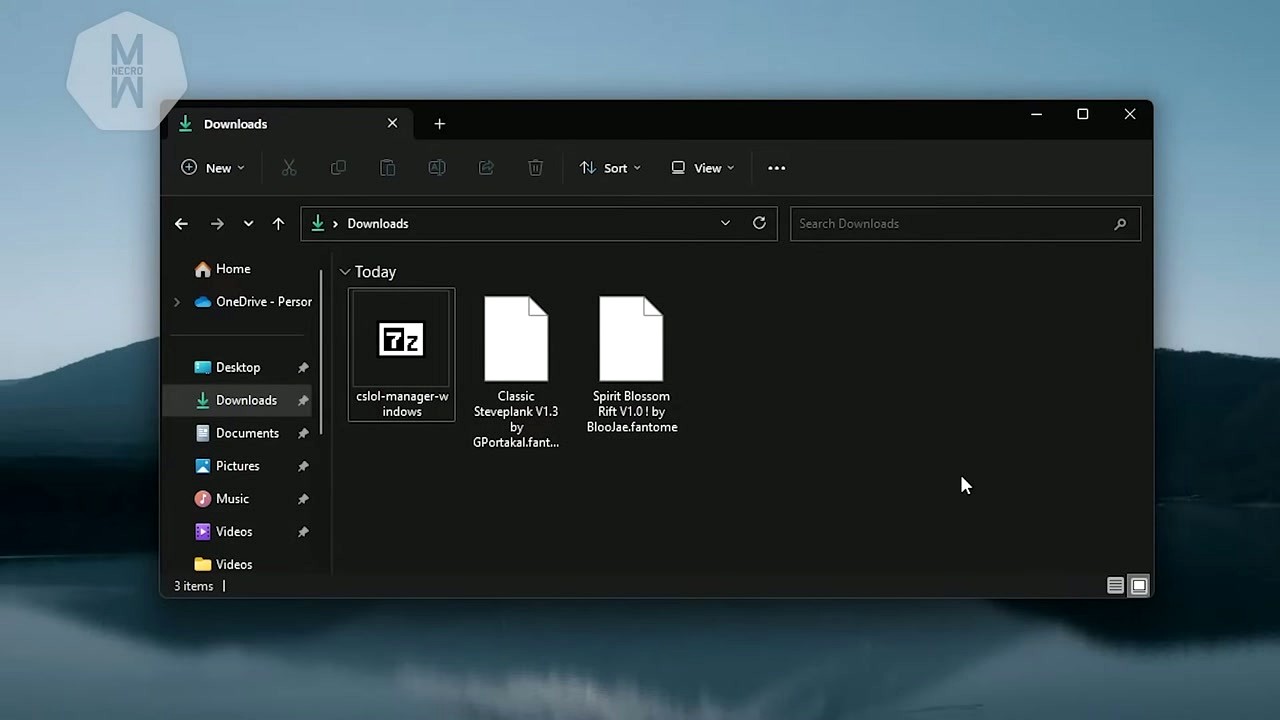
Browse community sites like Runeforge (runeforge.io) or KillerSkins (killerskins.com) to find skins you want. Download files end with .fantome or .zip – both formats work in CSLOL Manager. Each mod typically weighs between 5-50 MB depending on the skin complexity and whether it includes custom particles.
Stick to well-known community platforms. Mods from these sites follow the standard Fantome packaging format and include version info, author credits, and descriptions that display inside CSLOL Manager.
Import Mods into CSLOL Manager
Drag and drop your .fantome or .zip files directly into the CSLOL Manager window. Each imported mod appears as a row in the mod list with a checkbox, the mod name, version number, and author. You can also click the + (plus) button in the bottom search bar to browse for mod files on your drive, or use the import button next to it.
Enable Mods and Hit Run
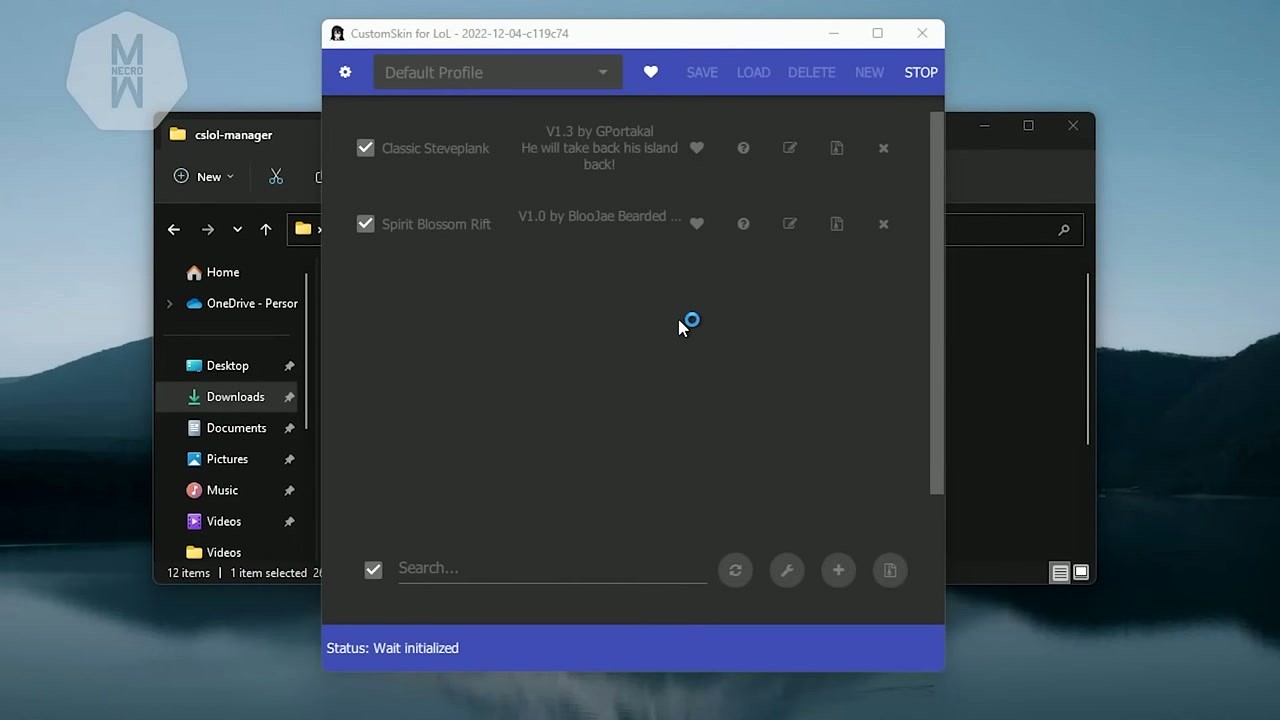
Tick the checkbox next to each mod you want active. Enabled mods show a filled purple checkbox. When two mods modify the same game file, CSLOL Manager handles the conflict based on alphabetical order – the mod listed first takes priority. Rename mods to control load order if needed.
Click RUN in the top-right corner. The status bar at the bottom changes to “Status: Wait initialized” and then watches for your League match to start. Now open your League client normally and queue up for a game.
Test in Practice Tool
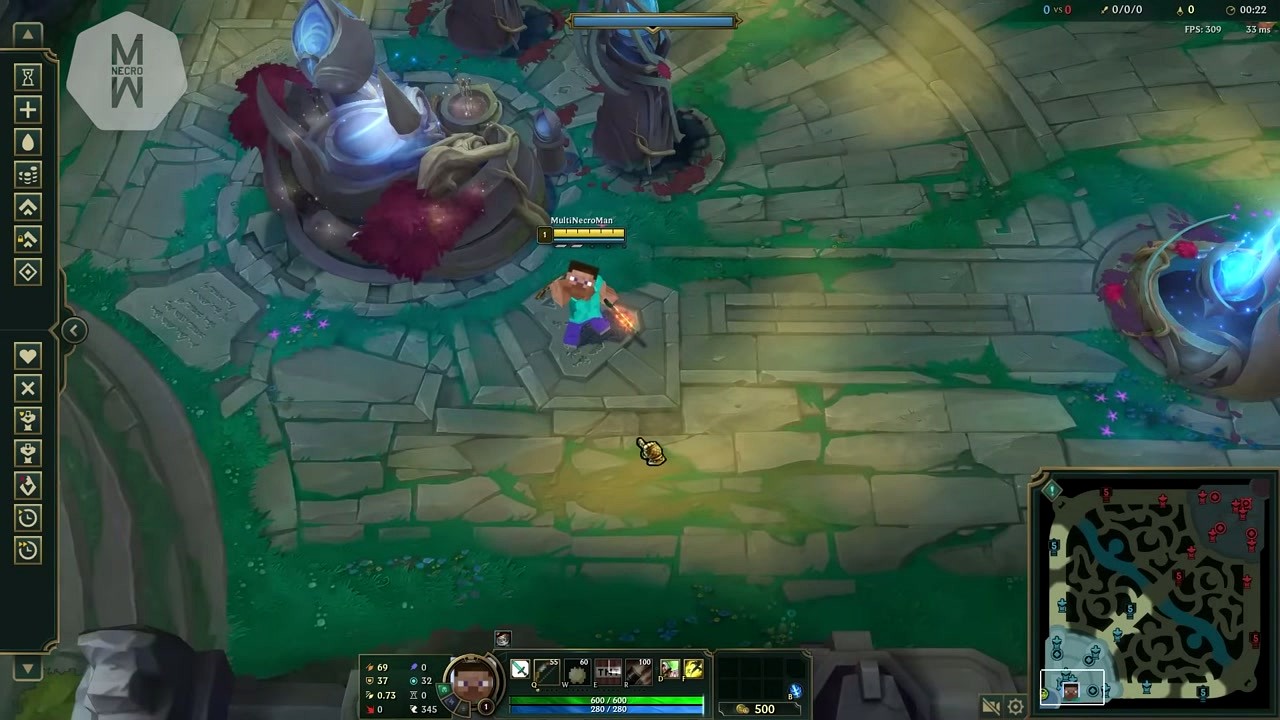
Start a Practice Tool match (Training > Practice Tool > Confirm) and pick a champion that has a mod enabled. Make sure to select the base skin in champion select unless the mod description says otherwise. Once the game loads, your custom skin appears on your character.
Only you can see the custom skin. Other players in the match see the default Riot skin on their end. All changes are purely client-side and leave no traces on Riot’s servers.
Tips, Tricks & Best Practices
Use Profiles
Click NEW in the toolbar to create separate profiles like “Competitive” or “Fun Skins.” Switch between them using the dropdown. Each profile remembers which mods are enabled, so you can swap your entire loadout in one click.
Update Safely
When a new CSLOL Manager release drops, download it and extract over your existing folder. Your config.ini and mod library carry over. After a Riot patch, some mods may break – check the mod author’s page for updated versions.
Set Texture Quality
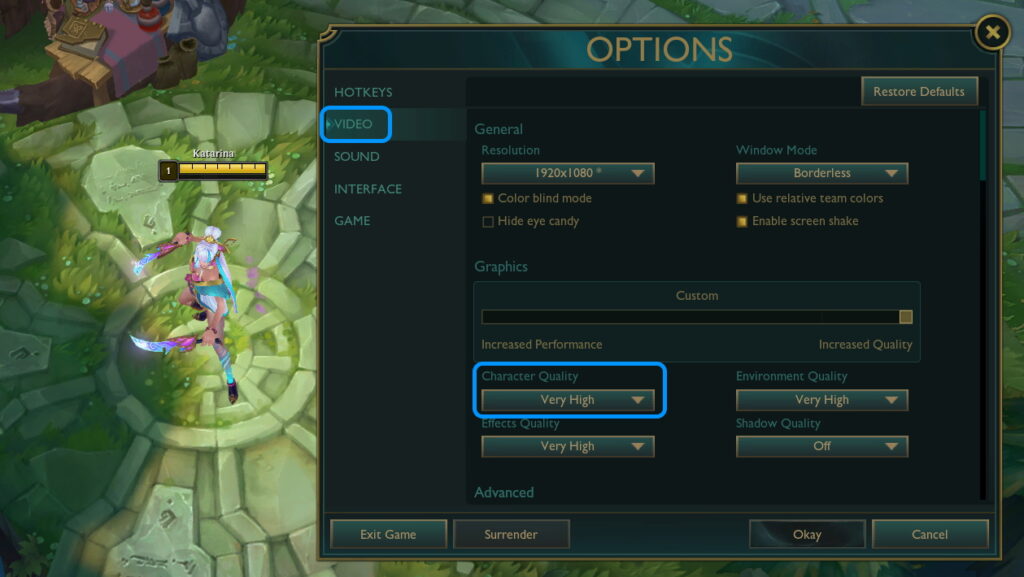
In League’s video settings, set Character Quality to High or Very High. Lower settings compress textures and custom skins may look blurry or broken at reduced quality levels.
Create Your Own Mods
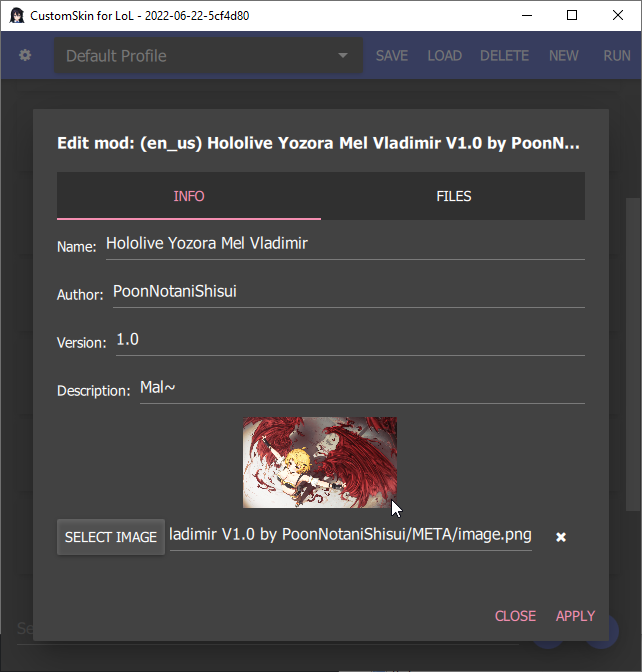
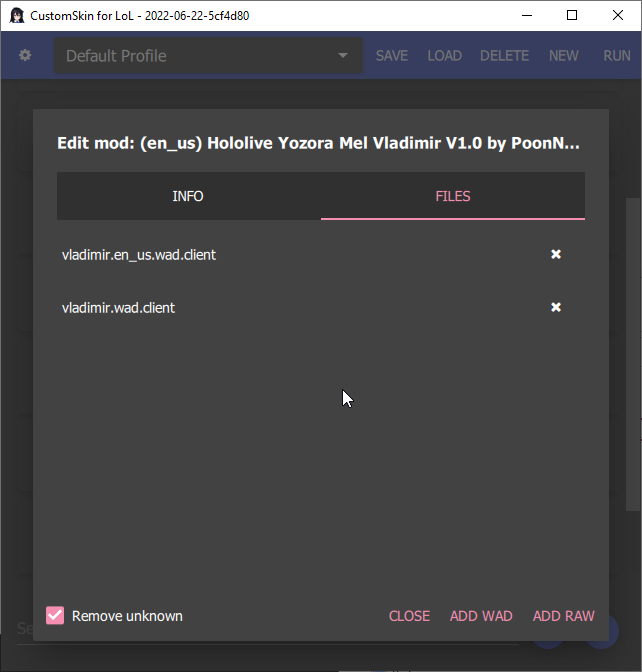
CSLOL Manager includes tools for creating mods from RAW folders and packing/unpacking WAD files. Right-click a mod and select Edit to inspect its contents, or use the create function to build a .fantome package from scratch.
Fix Common Issues
If mods stop working after a League patch, delete the overlay folder inside your CSLOL Manager directory and click RUN again. For persistent crashes, enable Verbose Logging in Settings and check log.txt for errors.
Join the Community
The r/LoLcustom subreddit, KillerSkins Discord, and Runeforge forums are where modders share new skins and troubleshoot problems. The LeagueToolkit GitHub Discussions page is the place for bug reports.
Got questions? Check the FAQ below, or grab the app from the download section and jump in.
Frequently Asked Questions
Answers to the most common questions about downloading, installing, and using CSLOL Manager for League of Legends custom skins.
Is CSLOL Manager safe to download?
Yes, CSLOL Manager is safe when you download it from the official GitHub repository at github.com/LeagueToolkit/cslol-manager. The source code is fully open under the GPL-3.0 license, which means anyone can inspect it for malicious behavior. The Windows ZIP package weighs around 15-20 MB and has been downloaded across 40+ releases without verified malware reports from the LeagueToolkit team.
Some antivirus programs (Windows Defender, Avast, Kaspersky) flag CSLOL Manager as a false positive because of how it injects cslol-dll.dll into the League client process. This DLL intercepts CreateFileA calls to remap skin assets at runtime. That behavior looks suspicious to signature-based scanners even though the code does nothing harmful. If your antivirus quarantines the file, you can add an exclusion for the CSLOL Manager folder.
- Only download from github.com/LeagueToolkit/cslol-manager/releases – never from random YouTube links, MediaFire, or third-party repack sites
- Verify the ZIP file hash matches what GitHub shows on the release page
- If Windows SmartScreen blocks the EXE, click “More info” then “Run anyway” – this happens because the binary is not code-signed
- Avoid any version that asks for your Riot account password – CSLOL Manager never needs login credentials
Pro tip: You can build CSLOL Manager from source yourself using the CMake instructions on the GitHub README. This eliminates any trust concerns about pre-built binaries.
For a full breakdown of the download options, see the Download section.
Can you get banned for using CSLOL Manager in League of Legends?
Riot Games has historically tolerated client-side cosmetic mods, but this is not a guarantee of safety. There is real risk involved, and the situation has shifted since Riot deployed Vanguard (their kernel-level anti-cheat) in 2024.
CSLOL Manager only changes what YOU see on your screen. Other players still see default Riot skins. The tool does not modify game data, stats, hitboxes, or any competitive element. Riot’s official stance, stated in their third-party application FAQ, says tools that provide no competitive advantage are generally tolerated. However, Vanguard has caused periodic breakages – in November 2025, for example, a Vanguard update blocked CSLOL Manager entirely for several days until the LeagueToolkit team pushed a fix.
- No mass bans specifically targeting CSLOL Manager users have been confirmed as of early 2026
- Vanguard can detect the DLL injection and may flag it in future updates
- Some users on r/LoLcustom report getting “SkinHack Detected” warnings, usually fixed by updating to the latest CSLOL version
- Using outdated versions after a League patch is the most common trigger for detection issues
- Garena and Asian server regions are NOT supported and carry higher ban risk
Pro tip: Always close CSLOL Manager and disable mods before playing ranked. If a League patch drops, wait for the LeagueToolkit team to confirm compatibility on the GitHub issues page before running mods again.
Check our Features section to understand how client-side mod injection works.
Where is the official safe download for CSLOL Manager?
The only official download source for CSLOL Manager is the LeagueToolkit GitHub repository at github.com/LeagueToolkit/cslol-manager/releases. Every other source – YouTube video descriptions, MediaFire links, random Discord servers – could contain modified or malicious versions.
The GitHub releases page lists every version ever published, with the “Latest” tag marking the current stable build. As of February 2026, the most recent release is tagged 2026-02-28-8bc5b8e. The Windows build ships as a ZIP archive (roughly 15-20 MB). macOS users get tar.xz packages for both Intel and Apple Silicon (ARM64). There is no official Linux build.
- Go to github.com/LeagueToolkit/cslol-manager/releases/latest
- Under “Assets,” pick the file matching your OS:
cslol-manager-windows.zipfor Windows, the appropriate tar.xz for macOS - Extract the ZIP to a folder OUTSIDE your League of Legends directory (e.g.,
C:Toolscslol-manager) - The community site lcsmanager.com also links to GitHub releases but is not run by the core developers
Pro tip: Bookmark the GitHub releases page directly. Fake CSLOL downloads have been spotted on Softonic and similar download aggregators. The real tool never requires a password-protected archive or asks you to disable your antivirus before extracting.
Head to our Download section for direct links to all available platforms.
Does CSLOL Manager work on Windows 11?
Yes, CSLOL Manager runs on Windows 11 without any extra configuration. It also works on Windows 10 (version 1809 and later). The tool requires admin privileges on the first launch to set up the DLL injection mechanism, but after that it runs with standard user permissions.
The Windows build is a portable ZIP – no installer needed. Extract it anywhere outside the League of Legends game directory and run cslol-manager.exe directly. The application is built with Qt and uses approximately 80-120 MB of RAM while running. On Windows 11 24H2, some users reported needing to run the executable in compatibility mode for Windows 10 to avoid a Qt rendering glitch, though this was fixed in the January 2026 release.
- Windows 10 (1809+) and Windows 11 are both fully supported
- 32-bit Windows is NOT supported – you need a 64-bit OS
- Requires Visual C++ Redistributable 2019 or later (most systems already have this)
- Must have League of Legends installed on the same machine
Pro tip: If CSLOL Manager fails to detect your League installation, manually set the game path in Settings (gear icon) to your League of Legends/Game folder. The default path is usually C:Riot GamesLeague of LegendsGame.
See the full hardware and OS breakdown in our System Requirements section.
Does CSLOL Manager work on Mac?
Yes, CSLOL Manager supports macOS. There are separate builds for Intel Macs and Apple Silicon (M1, M2, M3, M4) Macs. The macOS version uses a different injection method than Windows – instead of DLL injection, it pattern-scans the League executable and injects ARM64 or AMD64 shellcode depending on your chip architecture.
The macOS build ships as a tar.xz archive that you extract to your Applications folder or any convenient location. On first run, macOS Gatekeeper will likely block the app since it is not notarized by Apple. You need to right-click the application, select “Open,” and confirm that you want to run software from an unidentified developer. On Apple Silicon Macs running macOS 14 Sonoma or later, you may also need to allow the app in System Settings under Privacy & Security.
- Intel Mac build: works on macOS 10.15 Catalina and later
- Apple Silicon (ARM64) build: native support for M1/M2/M3/M4 chips
- Rosetta 2 is NOT recommended – use the native ARM64 build on Apple Silicon
- League of Legends for Mac must be installed through the Riot Client
Pro tip: After extracting on macOS, run xattr -cr /path/to/cslol-manager.app in Terminal to strip the quarantine flag. This prevents repeated Gatekeeper prompts every time you launch the app.
For step-by-step macOS installation instructions, visit our Getting Started guide.
What are the minimum system requirements for CSLOL Manager?
CSLOL Manager is lightweight and runs on any machine that can already handle League of Legends. The application itself needs about 80-120 MB of RAM and minimal CPU resources since it only activates during game launch.
The real requirement is League of Legends itself. If your PC can run League at playable framerates, CSLOL Manager will work. The tool is built with C++ and Qt, so it runs efficiently even on older hardware. The Windows ZIP is roughly 15-20 MB on disk, and it does not install background services or write to the registry.
- OS: Windows 10 (64-bit, version 1809+), Windows 11, or macOS 10.15+
- RAM: 4 GB minimum (8 GB recommended if running many mods)
- Disk space: 50 MB for CSLOL Manager itself, plus space for your mod library (each .fantome skin is typically 5-50 MB)
- CPU: Any 64-bit processor from the last decade
- Dependencies: Visual C++ Redistributable 2019+ (Windows), League of Legends installed
Pro tip: If you have a large mod collection (100+ skins), loading the library takes noticeably longer on mechanical hard drives. Moving your mod folder to an SSD cuts load time from 10+ seconds to under 2 seconds.
Check the detailed requirements table in our System Requirements section.
Is CSLOL Manager completely free to download and use?
Yes, CSLOL Manager is 100% free. There is no premium tier, no subscription, no ads, no donation nag screens, and no paid features. The entire application is open-source under the GPL-3.0 license, which means anyone can use, modify, and redistribute it at no cost.
The GPL-3.0 license also means that any fork or derivative of CSLOL Manager must remain open-source. This prevents anyone from taking the code, adding malware, and selling it. The project accepts voluntary donations through the LeagueToolkit GitHub Sponsors page, but donating gives you nothing extra – it just supports development costs. Key contributors like Moonshadow and Morilli have maintained the tool since its early days as “CustomSkin for LoL.”
- Free to download, free to use, no feature gating
- No account registration required – just extract and run
- Custom skin mods (.fantome files) from Runeforge and Skin Empire are also free
- The GPL-3.0 source code is on GitHub with full build instructions
Pro tip: If you see anyone selling CSLOL Manager or “premium custom skins” that require payment, it is a scam. Report such listings to the LeagueToolkit Discord community.
Grab the latest free build from our Download section.
What is the GPL-3.0 license and what does it mean for users?
The GPL-3.0 (GNU General Public License version 3) is a widely used open-source license that guarantees you the freedom to run, study, share, and modify the software. For regular users, the practical meaning is simple: CSLOL Manager is free, will stay free, and nobody can legally lock it behind a paywall.
GPL-3.0 is one of the most protective open-source licenses. Unlike permissive licenses (MIT, Apache), GPL requires that any modified version also be released as open-source. This is why the LeagueToolkit team chose it – if someone forks CSLOL Manager and adds features, they must publish their source code too. This creates a chain of transparency that benefits the modding community.
- You can use CSLOL Manager for any purpose without restrictions
- You can view and audit the complete source code on GitHub
- Anyone can fork the project and build their own version, as long as they keep it GPL-3.0
- The license does not affect your League of Legends account or Riot’s terms of service
Pro tip: The open-source nature of CSLOL Manager is actually a security advantage. Closed-source skin changers can hide keyloggers or credential stealers. With CSLOL Manager, the community regularly audits the code.
Learn more about CSLOL Manager’s feature set on our Features page.
How do I download and install CSLOL Manager step by step?
Installing CSLOL Manager takes about two minutes. There is no traditional installer – you just extract a ZIP file and run the executable.
The process is the same on Windows 10 and Windows 11. You need League of Legends already installed through the Riot Client, and you should close League before setting up CSLOL Manager for the first time. The extracted folder size is around 40-50 MB.
- Go to github.com/LeagueToolkit/cslol-manager/releases/latest and download
cslol-manager-windows.zip - Extract the ZIP to a folder OUTSIDE your League directory (example:
C:Toolscslol-manager). Do NOT put it insideRiot Games - Run
cslol-manager.exe. If Windows SmartScreen blocks it, click “More info” then “Run anyway” - On first launch, click the gear icon (Settings) and verify the Game path points to your
League of Legends/Gamefolder - Import .fantome mod files using the import button (arrow icon) in the bottom toolbar, or drag and drop them into the window
- Check the box next to each mod you want active, then click RUN to start League with your custom skins loaded
Pro tip: Create a “Mods” subfolder inside your CSLOL Manager directory to keep downloaded .fantome files organized. You can browse thousands of free skins on Runeforge.
Our Getting Started guide walks through every setting and menu in detail.
How to fix CSLOL Manager installation errors on Windows?
Most CSLOL Manager installation issues come from three things: antivirus interference, missing Visual C++ runtime, or extracting to the wrong location. The tool does not have a traditional installer, so there are no MSI or setup wizard errors to deal with.
The most common problem reported on r/LoLcustom and GitHub issues is Windows Defender deleting cslol-dll.dll from the extracted folder. Without this file, the manager launches but cannot inject mods into League. The second most common issue is extracting the ZIP directly into the League of Legends game folder, which causes path conflicts.
- Antivirus quarantine: Open Windows Security, go to Virus & threat protection, click Protection history, and restore the quarantined file. Then add the CSLOL Manager folder to exclusions
- Missing DLL errors: Install the Visual C++ Redistributable 2022 (x64) from Microsoft
- “Access denied” on launch: Right-click
cslol-manager.exe, select Properties, check “Run as administrator” under Compatibility - Game path not detected: Open Settings (gear icon) and manually browse to
C:Riot GamesLeague of LegendsGame - Crash on startup: Delete the
cslol-managerconfig folder at%APPDATA%cslol-managerand re-launch
Pro tip: If nothing works, check the log file next to the cslol-manager.exe executable. Posting this log on the GitHub issues page usually gets you a developer response within 24-48 hours.
Still stuck? See the full troubleshooting walkthrough in our Getting Started guide.
How to fix CSLOL Manager not working after a League of Legends patch?
CSLOL Manager breaks after most major League patches because Riot changes memory offsets and file structures that the mod injection relies on. This has happened consistently with every major patch cycle since Vanguard launched in 2024.
When a new League patch drops, expect CSLOL Manager to stop working for anywhere from a few hours to several days. The LeagueToolkit developers need to update the tool’s offset tables and rebuild the DLL to match Riot’s new client binary. The November 2025 Vanguard incident, for example, took nearly a week to resolve. Do NOT try to force-run an outdated CSLOL version on a new patch – this can trigger Vanguard’s anti-tamper detection.
- Check the GitHub releases page for a new version matching the current League patch
- Visit r/LoLcustom on Reddit – someone usually posts within hours confirming whether mods work on the new patch
- If an update is available, download the new ZIP and replace your old CSLOL Manager files (your mod library and profiles are preserved)
- If no update exists yet, disable all mods and play without custom skins until a fix ships
- After updating, click RUN on a practice game first to verify skins load before queuing ranked
Pro tip: Watch the GitHub repository (click “Watch” then “Custom” and check “Releases”) to get email notifications the moment a new compatible version drops.
Our Download section always links to the latest compatible release.
Why is CSLOL Manager crashing or freezing on startup?
Startup crashes in CSLOL Manager are almost always caused by a corrupted config file, conflicting antivirus software, or a broken mod in your library. The application is built on Qt/QML, and certain graphics driver issues can also cause the UI to freeze on render.
On r/LoLcustom, the most frequently reported crash scenario is the manager hanging on a white or black screen after the splash. This typically happens when the %APPDATA%cslol-manager settings file references a League path that no longer exists (common after reinstalling League to a different drive). The second most common crash trigger is a corrupted .fantome file in the mod library that causes a parsing error during startup scan.
- Reset config: Close CSLOL Manager, delete or rename the folder
%APPDATA%cslol-manager, then relaunch - Disable antivirus temporarily: Turn off real-time protection in Windows Defender, launch CSLOL Manager, then re-enable protection and add the folder to exclusions
- Remove bad mods: Move all .fantome files out of your mod folder, launch CSLOL Manager with an empty library, then re-add mods one at a time to identify the culprit
- Update GPU drivers: Qt rendering issues on Intel UHD and older AMD GPUs are fixed by updating to the latest display driver
- Check the log file: Open
login the CSLOL Manager directory with Notepad and look for the last error message before the crash
Pro tip: If CSLOL Manager crashes only when clicking RUN (not on startup), the problem is almost always an incompatible mod. Check that your mods were made for the current League season – Season 14 mods may break on Season 15 due to WAD format changes.
For a complete troubleshooting checklist, see our Getting Started guide.
CSLOL Manager shows “SkinHack Detected” – how do I fix this?
The “SkinHack Detected” warning comes from Riot Vanguard, not from CSLOL Manager itself. It means Vanguard has flagged the DLL injection as a potential cheat. This does not always result in a ban, but you should stop playing immediately and fix the issue.
This warning became common after Vanguard’s October-November 2025 updates, which tightened detection of memory-modifying tools. The warning triggers most often when running an outdated CSLOL Manager version on a newer League patch, or when Vanguard’s behavioral signatures catch the injection mid-game. Users on the LeagueToolkit GitHub reported that simply updating to the latest CSLOL release resolved the warning in about 80% of cases.
- Close League of Legends and CSLOL Manager immediately
- Download the latest CSLOL Manager release from GitHub
- Replace your entire CSLOL Manager folder with the new version (keep your mods folder separate)
- Restart your PC to ensure Vanguard fully reinitializes
- Run CSLOL Manager and test in a Practice Tool game before queuing normals or ranked
Pro tip: Never run CSLOL Manager and another skin-changing tool (Bocchi, Celestial Launcher, or older Wooxy) at the same time. Multiple injection tools competing for the same memory space is the fastest way to trigger a Vanguard detection.
Read about CSLOL Manager’s injection method in our Features section.
How do I update CSLOL Manager to the latest version?
CSLOL Manager checks for updates automatically on startup. When a new version is available, a notification appears in the manager window with a link to the GitHub releases page. There is no built-in auto-updater that patches files in place – you need to download the new ZIP and replace the old files manually.
Since CSLOL Manager is a portable application (no installer, no registry entries), updating is straightforward. Your mod library and profiles are stored separately from the executable, so they survive updates. The config lives in %APPDATA%cslol-manager and persists across versions. Most updates target compatibility with new League patches and fix injection bugs related to Vanguard changes.
- When CSLOL Manager shows an update notification, close the application
- Download the new ZIP from GitHub releases
- Extract the new files over your existing CSLOL Manager folder, replacing old files when prompted
- Keep your mods folder and any separate .fantome files – they are not part of the update
- Launch the updated version and verify your Game path is still set correctly in Settings
Pro tip: You can disable the startup update check in Settings under the System tab if it annoys you, but keep in mind that running an outdated version after a League patch often causes crashes or Vanguard detection issues.
Always grab the latest version from our Download section.
What changed in the latest version of CSLOL Manager?
The most recent release (tagged 2026-02-28-8bc5b8e) is a maintenance update focused on compatibility with the February 2026 League patch. Development on CSLOL Manager has slowed as the LeagueToolkit team shifts focus to LTK Manager, the next-generation replacement built with Rust and React.
CSLOL Manager has been in a maintenance phase since mid-2025. New releases now primarily fix Vanguard compatibility breaks and update memory offsets for new League client builds. Feature development (new UI elements, workflow improvements, mod creation tools) has moved to LTK Manager. The 40+ releases over CSLOL Manager’s lifetime span from its early days as “CustomSkin for LoL” through to the current Qt-based desktop app.
- February 2026 release: Updated offsets for League patch 26.3, fixed Vanguard detection bypass
- January 2026: Qt rendering fix for Windows 11 24H2, Apple Silicon stability improvements
- November 2025: Emergency patch after Vanguard blocked all mod injection methods
- The full changelog is on the GitHub releases page
Pro tip: If you want the latest features and a more modern UI, check out LTK Manager. It reads the same .fantome mod format, so your existing skin collection works without conversion.
See how CSLOL Manager compares to its successor in our Features overview.
CSLOL Manager vs LTK Manager – which should I use?
If you want stability and a proven track record, stick with CSLOL Manager. If you want the latest features and a modern interface, try LTK Manager. Both are made by the same LeagueToolkit team and both use the .fantome mod format.
LTK Manager is the official successor to CSLOL Manager, rebuilt from scratch with a Rust backend and React-based UI. It launched in late 2025 and is where all new development happens. CSLOL Manager is now in maintenance mode, receiving only compatibility patches. The key difference is architecture: CSLOL Manager is a C++/Qt desktop app, while LTK Manager runs as a local web app with a browser-based interface. LTK Manager also has a built-in mod browser that connects directly to Runeforge, so you can find and install skins without leaving the app.
- CSLOL Manager: Stable, battle-tested, lower resource usage, works offline, simpler UI, 40+ releases of bug fixes
- LTK Manager: Modern UI, integrated mod browsing, faster patching after League updates, active feature development, but still relatively new
- Both tools read .fantome files, so switching between them does not require re-downloading your skin collection
- CSLOL Manager gets compatibility fixes within days of League patches; LTK Manager often ships same-day fixes
Pro tip: You can install both tools and switch between them. They do not conflict as long as you only run one at a time. Some users keep CSLOL Manager as a fallback for when LTK Manager has issues with a new League patch.
Compare their feature sets in our Features section.
What are the best alternatives to CSLOL Manager for League skin mods?
The main alternatives are LTK Manager (same developer team), Runeforge (web-based skin browser), and third-party tools like Bocchi and Celestial Launcher. Each has different strengths depending on how you use custom skins.
Runeforge at runeforge.dev is not a skin installer – it is a community platform where creators upload custom skins. You browse and download .fantome files from Runeforge, then load them into CSLOL Manager or LTK Manager. Skin Empire (lolskinempire.com) fills a similar role. Bocchi is a newer open-source skin changer that some users prefer for its simpler interface, though it has fewer features than CSLOL Manager. Celestial Launcher by DivineSkins offers one-click installation with an auto-update system but is not open-source, which makes some users uneasy about security.
- LTK Manager: Best overall alternative, same .fantome support, modern UI, active development (GitHub)
- Runeforge: Skin browsing/downloading platform, pairs with CSLOL or LTK Manager
- Bocchi: Lightweight open-source option, fewer features but simpler workflow
- Celestial Launcher: One-click install, auto-patches, but closed-source
- Older tools like Wooxy and LoL Custom Skin are completely dead and do not work with current League versions
Pro tip: If you just want to browse skins without installing anything, Runeforge has a preview gallery where you can see how each skin looks in-game before downloading the .fantome file.
See what makes CSLOL Manager stand out on our Features page.
How do I create custom skins with CSLOL Manager?
CSLOL Manager includes a built-in mod creation tool that lets you package RAW skin folders into .fantome files. You do not need separate software to create basic skin mods, though complex model edits require external 3D tools.
The mod creation workflow starts with extracting a champion’s WAD file (the archive that contains textures, models, and animations). CSLOL Manager can unpack WAD files through its “Create” function. Once extracted, you edit the texture files (.dds or .tex format) using image editors like Photoshop, GIMP, or the specialized Ritobin tool. For texture-only skins (recolors, pattern changes), you only need to modify .dds files. Model changes (new geometry, particles, VFX) require additional tools from the modding community like Maya/Blender plugins from Obsidian.
- In CSLOL Manager, click the + button and select “Create from RAW”
- Point it to a folder containing your modified game assets (organized by WAD path structure)
- Fill in the mod metadata: name, author, version, description
- Click Create to generate a .fantome file you can import and share
- Test your skin in Practice Tool before sharing it on Runeforge
Pro tip: The Runeforge Wiki at wiki.runeforge.dev has a complete guide to skin creation, including WAD file structure, texture formats, and model rigging. Start with simple texture recolors before attempting model replacements.
Learn more about CSLOL Manager’s creation tools in our Features section.
How do profiles work in CSLOL Manager?
Profiles let you save different combinations of active mods and switch between them without manually checking and unchecking boxes every time. You might have one profile for ranked (minimal, competition-safe skins only) and another for normals (full anime skin overhaul).
The profile system is in the toolbar at the top of CSLOL Manager, next to the gear icon. The dropdown shows your current profile name, with SAVE, LOAD, DELETE, and NEW buttons alongside it. Each profile stores which mods are enabled and their load order. CSLOL Manager ships with a “Default Profile” that contains whatever mods you initially checked. Profiles are saved locally in the app config at %APPDATA%cslol-manager and persist across updates.
- Enable the mods you want for a specific setup (e.g., only champion skins, no map mods)
- Type a name in the profile dropdown field (e.g., “Ranked Safe”)
- Click SAVE to store that configuration
- Create another profile by clicking NEW, enabling different mods, and saving with a different name
- Switch between profiles by selecting from the dropdown and clicking LOAD
Pro tip: If two mods conflict (e.g., two different skins for the same champion), only the last one in the load order takes effect. You can drag mods up and down in the list to control priority. Profile-based organization helps avoid these conflicts entirely.
The profile system is one of CSLOL Manager’s standout features – see all of them on our Features page.
Still have questions? Check the GitHub Discussions or the r/LoLcustom community.